It looks like you're using an adblocker.
Adblockers make us sad. We use ads to keep our content happy and free. If you like what we are doing please consider supporting us by whitelisting our website. You can report badly-behaved ads by clicking/tapping the nearby 'Advertisement' X text.
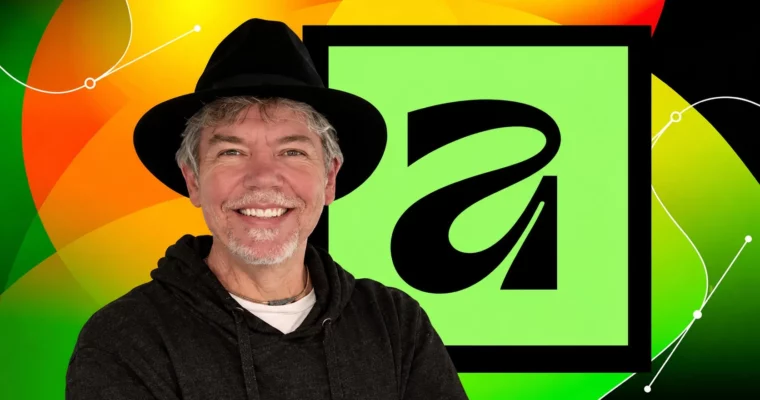
Affinity 3 – The Complete Design Course – Beginner to Pro by Tim Wilson
Learn Vector, Pixel, and Layout in one free app and build real posters, illustrations, and brochures from scratch.
One course for the whole app. You will jump between Vector, Pixel, and Layout studios, fix photos, draw characters, and lay out brochures — all with the free Affinity 3.
🎯 What you’ll learn
Create illustrations and graphics by drawing, transforming and combining shapes, using strokes, fills, gradients and blend modes
Create characters from start to finish
Design multi-page layouts using typography, text flow, color management (RGB/CMYK) and layout tools
Correct and enhance images using color balance, blending techniques, and pixel-based adjustments
Navigate confidently between the Vector, Pixel, and Layout studios and understand when to use each one
Work with layers, Bezier curves, selections, masks and cutouts to edit images and build creative compositions
Export your designs in multiple formats for print, web, social media, and professional publishing
Use duplication, Pen tool, Symbols, and History for faster non-destructive work
Create a vector illustration advert from start to finish
✅ Requirements
Skills: Basic computer skills, no prior design experience required
Tools: Free Affinity 3 (by Canva) Studio installed, mouse or drawing tablet recommended
Hardware: Standard laptop or desktop capable of running Affinity 3
📝 Description
This is a hands-on walkthrough of the full Affinity 3 workflow. You don’t learn tools in isolation. You switch between Vector, Pixel, and Layout studios the way a real brief demands it — draw it, retouch it, lay it out, export it.
In vector, you start simple: shapes, Node Tool, corners, geometry and Shape Builder. Then you build up to proper work — Pen tool and Bezier curves, custom brushes, repeating patterns, Symbols, and the new Blend Tool. Projects include an animal from shapes, flat-art character, badge graphic, vintage logo, and a full sports shoe redraw with texture and color variations.
In pixel, you learn what actually fixes photos: Levels, Curves, Color Balance, HSL, selections and masks. You will do cutouts, extend backgrounds, clean edges, balance skin tones, and stack adjustment layers for posters. There is also RAW development, Liquify, channels, perspective and mesh warp, plus Canva AI helpers like depth select, super resolve, and colorize.
In layout, you get control Canva alone can’t give you. Master Pages, text flow, columns, baseline grid, Character & Paragraph Styles, tables, footnotes, and table of contents. You will set up CMYK documents with bleed, wrap text around images, handle widows, bullets, glyphs and ligatures, and export print-ready PDFs alongside JPG/PNG for web and social.
🧑🎓 Who this course is for
Complete beginners learning Affinity Studio for the first time
Canva users who wish to expand their creative skills
Designers switching from Adobe Illustrator, Photoshop, or InDesign
Students and professionals wanting a free, all-in-one creative toolkit
Hobbyists, home users, and illustrators exploring digital creativity
Anyone who wants to learn vector, pixel, and layout design in one course
🧑🏫 About the Author
Tim Wilson is a designer, former university lecturer, and creative software trainer based in London. He teaches Affinity, Adobe workflows, and practical studio skills with a focus on clear, step-by-step builds rather than theory.
He has spent years training beginners, switchers, and working creatives on real briefs — from branding and editorial layout to illustration and photo compositing. His teaching style is direct and project-led, so you always know why a tool matters and where it fits in the pipeline.
🏁 Final Result
A portfolio set including vector character and flat illustration, repeating patterns and badge graphic, cinematic photo posters and Wes Anderson-style edit, typographic logo, 4-page brochure and multi-page styled document exported as print-ready PDF and web JPG/PNG.
Curriculum
📋 Course content
Module 1:Interface and Setup
How to Use this Course1:25
Interface – Intro0:41
What Do They All Do1:39
Panels & Toolbars3:07
Studios & Panels3:00
Vector & Pixel Differences3:55
Module 2:Vector Shapes and First Character
Working with Simple Shapes5:28
Transforming Shapes with the Node Tool & Curves4:07
Various Ways to Duplicate Objects2:13
Making Shapes with Geometry3:09
Making Shapes with the Shape Builder Tool3:02
Create the Dog’s Head5:36
Create the Dog’s Body2:36
Backgrounds & Text7:53
Module 3:Color, Strokes and Gradients
Fill & Stroke – The Basics4:37
Color Panels5:28
Swatches5:15
Gradient Basics & Pigment Blend3:45
Create CMYK Document & Radial Gradients7:32
Black Background & Blend Modes3:56
Add Title & Use Tracking4:27
Module 4:Pixel Studio Basics and Photo Correction
Pixels & Megapixels4:09
Crop Options7:00
Layers in Pixel Studio7:08
Adjustment Layers6:03
Levels6:59
Using Curves3:13
Correct Image Color Using Color Balance9:37
Use Hue & Saturation to Change Specific Color7:41
Module 5:Selections, Cutouts and Compositing
What Do Selections Do4:51
Using the Magnetic & Straight Line Selections8:08
Use the Object Selection Tool2:00
Select the House & Clean Selection6:12
Add Transparent Gradient Background3:40
Cut Out Images6:41
Blend Images3:05
Balance Skin Tones3:51
Module 6:Poster Projects in Pixel
Create Graphic with Pen Tool2:50
Cut Out the Car4:39
Add Lights to the Car4:47
Create Your Movie Title4:45
Correct Background Image3:27
Cut Out Dancer7:36
Add Your Text & Adjust Vibrance4:23
Module 7:Layout Studio and Typography Basics
Why Use Layout Studio & Tweaks For InDesign Users2:13
Multi-Pages & Bleeds8:36
RGB VS CMYK8:51
Using Frame Text vs Artistic Text3:33
Text Flow4:01
Place Photos into Picture Frames4:37
Text Wrap4:46
Module 8:Big Brand and Brochure Project
Get Brand Colors from ChatGPT6:55
Draw the Logo from Reference7:57
Set Up Brochure Document3:01
Place the Cover Photo and Add Text Under Cutout6:19
Columns & Tracking5:24
Blend Photos with Transparency Tool3:11
Export the PDF for Print & Email8:26
Module 9:Power Duplication, Strokes and Patterns
Power Duplication & Registration Points8:51
Using Expressions4:36
Stroke Options – Caps, Mitre, Joins, Align, Order & Scale7:21
Make a Simple Pattern4:17
More Complex Patterns7:31
Module 10:Brushes, Pen Tool and Bezier Curves
Vector (Path) vs Pixel Brushes4:05
Make a Textured Intensity Brush5:03
Bezier Curve Handles3:51
Pen Tool Basics & Convert Nodes to Curves3:18
Draw with Curves2:40
Stroke Width Tool3:34
Module 11:Flat Illustration and Blend Tool
Place the Reference Image & Draw the Head8:11
Draw the Hands & Shirt9:46
Color & Details4:17
How it Works – Blend Tool3:34
Blending Text3:27
Contours5:28
Cyber Background Project – 14:58
Module 12:Layers, Masks, Blends and Badge Project
Container Layers vs Groups4:56
Masks & Clipping3:21
Look at the Blends8:16
Design Thoughts & Basic Shapes3:16
Add a Pattern to the Snow5:17
Make a Symbol3:24
Add Text to a Path4:00
Module 13:Symbols, Artboards and Shoe Redraw
Use & Save the History Panel5:20
Make a Copy & Create a Symbol4:56
Creating Variations with Artboards3:55
Quick Effects4:28
Draw the Heel & Base3:40
Draw Some Laces8:45
Add Texture6:00
Module 14:Advanced Pixel – Perspective, Stretch and Brushes
The Single Perspective Tool3:31
Mesh Tools4:26
Use Perspective Tool on Buildings3:25
Create the Stretch3:30
Opacity vs Flow Paint Brush5:12
Mixer Brush – How it Works3:29
Color Replacement Brush – How it Works4:54
Module 15:AI Tools, RAW, Channels and Liquify
Select by Depth3:15
Super Resolve3:09
Colorise B&W Images3:54
Why Raw Files4:37
What are Channels & 8 Bit Channels4:31
Move Pixels & Freeze / Thaw Areas4:22
Use Liquify4:11
Shadows & Reflection5:05
Module 16:Long Documents – Type, Tables, Masters and TOC
Text Options Font, Font Family & Typefaces & Outlines7:12
Type on a Path Controls4:58
Wrap Text Basics4:01
Add 4 Pages and Hero Picture2:42
Basic Table3:42
Create a Master from Scratch7:00
Make a Custom Style5:15
Make a TOC3:53
Make Paragraph Styles7:37
Export for Print & Screen9:45
Watch online or Download for Free
Affinity 3 – The Complete Design Course – Beginner to Pro by Tim Wilson



 Channel