

How to digitally draw-paint a realistic Dragon in Photoshop by Chris Scalf

Duration:5h 7m
Actual Duration:5h 7m
Release date:2018
Publisher:Udemy
Skill level:Intermediate
Language:English
Exercise files:Yes
Software:Photoshop
Course URL:https://www.udemy.com/course/how-to-digitally-drawpaint-a-realistic-dragon-in-photoshop
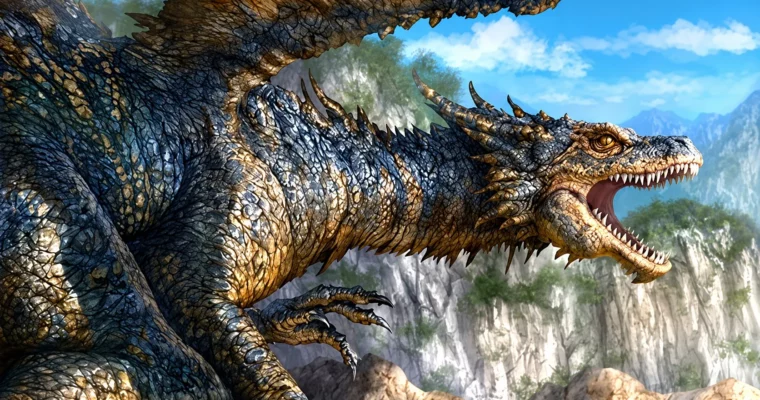
This is a straight-up watch-me-work dragon painting course. You start from loose form and alligator reference and end with a fully rendered realistic dragon sitting in a moody environment.
🎯 What you’ll learn
- Build believable creature form under the details for 2-legged and 4-legged dragons
- Paint extremely detailed textures like scales, horns, teeth and skin and show how they react to light and shadow
- Work through color, revisions, and background problems without restarting from scratch
✅ Requirements
- Skills: Basic understanding of Photoshop, comfortable sketching creatures
- Tools: Adobe Photoshop, graphics tablet (Wacom Intuos, Cintiq, etc.)
- Hardware: Computer capable of running Photoshop smoothly
📝 Description
Chris paints straight from real reference — mostly alligator photos — and talks through why he builds dragons the way he does. Old-school inspiration mixed with actual anatomy, dinosaur studies, and real animals. No magic tricks. You get form first, then detail on top, so the head, jaw, and neck actually feel like they could work in Photoshop and in real life.
The middle of the course is all grind in a good way. You block in tone, push color over the sketch, liquify the face back into shape, then start stacking scales, wrinkles, horns, and teeth. He zooms way in and shows how light and shadow sells the texture instead of just noise. You will see him fix proportions mid-painting and keep the rendering consistent from snout to body.
What makes this one honest is the background part. He tries something, it does not work, he scraps it and repaints mist, sky, and mountains around the dragon. That whole background painting and composition recovery is super useful to watch. It is not a perfect timelapse — it is how client work actually goes.
🧑🎓 Who this course is for
- Concept artists and illustrators who want stronger, more believable creatures for games, film, or publishing
- Photoshop painters who can sketch but get stuck when it is time to add realistic texture, color, and environment
🧑🏫 About the Author
Chris Scalf is a creature-focused illustrator working in digital painting and creature concept art. His approach is rooted in traditional drawing mixed with photo reference and animal anatomy, which is why his dragons read as heavy, physical animals instead of cartoons. In this course he teaches the way he actually works — loose to tight, with revisions included.
🏁 Final Result
- A finished portfolio-ready realistic dragon illustration with tight facial detail, textured body, and atmospheric mountain background painted in Photoshop.
 Channel