

Ad Clicks : Ad Views : Ad Clicks : Ad Views : Ad Clicks : Ad Views : Ad Clicks : Ad Views :
Oh Snap!

It looks like you're using an adblocker. Adblockers make us sad. We use ads to keep our content happy and free. If you like what we are doing please consider supporting us by whitelisting our website. You can report badly-behaved ads by clicking/tapping the nearby 'Advertisement' X text.

Creating a 2D Animated scene with OpenToonz (FREE Software) by Darren T
Creating a 2D Animated scene with OpenToonz (FREE Software) by Darren T

/

Author:Darren T

Duration:10 hours on-demand video

Release date:2024, December

Publisher:Udemy

Skill level:Beginner

Language:English

Exercise files:Yes

Software:OpenToonz

Course URL:https://www.udemy.com/course/animating-with-opentoonz

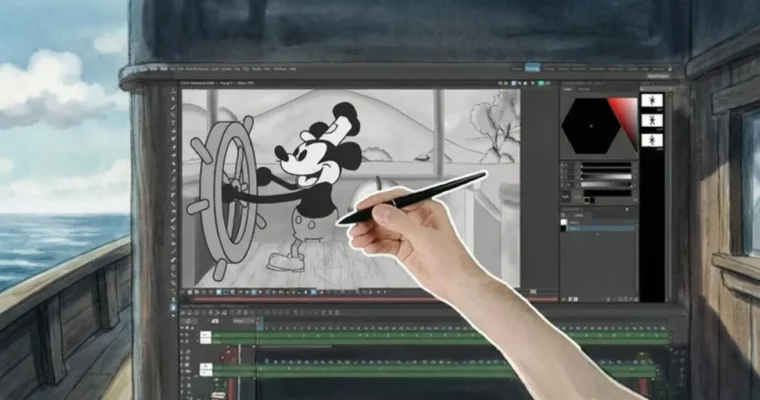
Learn to create a complete 2D animated scene from scratch using the free OpenToonz software, recreating a classic animation.

Ready to bring classic animation to life without spending a dime on software? This course dives into recreating the iconic Mickey Mouse whistling scene from Steamboat Willie using the powerful, free OpenToonz software. You’ll get a hands-on walkthrough of the entire process, from sketching backgrounds and characters to timing animations perfectly with audio.

🎯 What you’ll learn

  • Create a complete 2D animated scene in OpenToonz.
  • Understand and utilize every tool and step in the animation workflow.
  • Paint backgrounds, midgrounds, and draw characters using various tools.
  • Build an infinite scrolling background.
  • Efficiently reuse character drawings to save time.

βœ… Requirements

  • No prior experience in animation or OpenToonz is needed.
  • OpenToonz is free to download; instructions are provided.

πŸ“ Description

This course shows you how to assemble a complete animation shot using the free OpenToonz software. We’ll recreate the classic whistling scene from Steamboat Willie, breaking down the process into manageable “scenes” that can be combined into the final animation. You’ll learn to paint backgrounds with a unique pencil effect using Raster brushes, build multi-layered, infinitely scrollable backgrounds, and time your animation precisely to an added soundtrack. The course covers sketching, inking, and coloring character animation, emphasizing reusing drawings and optimizing the workflow to speed up production. We’ll even explore separating characters into parts for easier animation and rigging. As a bonus, you’ll discover how to adapt your animation into a vertical “short” video format for social media.

πŸ§‘β€πŸŽ“ Who this course is for:

  • Complete beginners to OpenToonz or intermediate users looking to move from simple animations to full scenes for cartoons.
  • Individuals with no prior artistic skill can still benefit greatly from this course.

πŸ§‘β€πŸ« About the Author

Darren T is a passionate animation enthusiast with over 20 years of software experience in both writing and teaching. He started animating in school notebooks and flipbooks, eventually finding his groove with the traditional approach of OpenToonz after its open-source release. Darren has been training newcomers to OpenToonz for over 3 years, helping thousands of students get started. He excels at presenting software in a relatable and understandable way, making him the perfect guide for your animation journey.

🏁 Final Result

  • A portfolio-ready, complete 2D animated scene, recreating the classic Mickey Mouse whistling animation.
  • The ability to adapt your animation into a vertical format for social media sharing.
Curriculum

πŸ“‹ Course content

  1. Introduction
    • Introduction
      0:59
    • Reviewing the original animation
      11:47
    • Creating the project and first scene
      3:06
    • Creating and using drawing levels
      6:24
    • Community and updates
      0:55
    • Section exercise: Download and setup OpenToonz
      2:48
  2. Section 2 introduction
    • Section 2 introduction
      0:06
    • Setting up the 1-point perspective drawing assistant
      6:15
    • Adding a reference
      3:13
    • Drawing the main frame in perspective
      5:11
    • Drawing the “furniture” on the boat
      8:59
    • A look around the workspace
      5:48
    • Drawing the neat lines
      11:09
    • Drawing the neat ring
      4:18
    • Starting colouring – Laying down the flat colours
      9:16
    • Choosing and adjusting the colours
      3:01
    • Airbrushing the colour variation on the boat
      10:27
    • Finishing touches
      8:46
    • Rendering the boat image
      2:20
    • Section exercise: Create your first background
      1:11
  3. Section 3 introduction
    • Section 3 introduction
      0:06
    • Setting up the scene
      2:22
    • Adding the boat image as a reference
      1:53
    • Sketching the horizon and hills
      3:42
    • Sketching the trees and bushes
      5:01
    • Laying down the base colours
      2:55
    • Adding shadows and highlights to add a 3D effect
      11:40
    • Final adjustments to the sky and water
      7:02
    • Darken the trees and render
      2:33
    • Back to the boat – to add finishing touches
      6:21
    • Section exercise: Create your remaining backgrounds
      0:28
  4. Section 4 introduction
    • Section 4 introduction
      0:06
    • Creating the animation scene
      0:41
    • Adding the pre-rendered backgrounds
      1:07
    • Adding the audio track
      2:08
    • Setting up the infinite scrolling background
      4:40
    • Adding the tiling effect to the infinite scrolling background
      7:59
    • Drawing the wheel
      7:43
    • Duplicating the wheel drawings
      2:12
    • Drawing the first set of handles
      12:58
    • Setting up the onion skin
      1:38
    • Working out the handle inbetween positions
      2:54
    • Adding the 2nd & 3rd handle guidelines
      1:47
    • Drawing the final handles
      13:41
    • Placing the rotating wheel in time with the audio
      6:33
    • Rendering the full video so far
      1:50
    • Section exercise: Set up your animation scene.
      0:40
  5. Section 5 introduction
    • Section 5 introduction
      0:06
    • Getting a video from YouTube into OpenToonz
      2:15
    • Drawing over the imported video
      3:45
    • More onion skin tips & preferences
      1:49
    • Examining a simple movement – Mickey’s little dance
      8:17
    • Section exercise: Check out reference
      0:11
  6. Section 6 introduction
    • Section 6 introduction
      0:06
    • Adding a reference (the original Mickey)
      3:58
    • Getting ready to sketch & dealing with UNDO not working!
      2:02
    • Sketching Mickey’s head
      42:50
    • Start sketching Mickey’s shorts placeholders
      6:32
    • Sketch Mickey’s shorts placeholders for the little dance
      6:07
    • Sketching the actual shorts over the placeholders
      40:13
    • Sketching Mickey’s feet – Lifting & stamping
      12:56
    • Sketching Mickey’s feet – Repeated tapping
      6:18
    • Sketching Mickey’s body
      8:07
    • Section exercise: Start sketching your character
      0:21
  7. Section 7 introduction
    • Section 7 introduction
      0:06
    • Setup an ink level to match the sketch level’s drawings
      3:11
    • Setting up the ink options and inking Mickey’s feet
      9:38
    • A quicker way to setup the ink level
      0:59
    • Inking the shorts
      21:20
    • Inking the shorts buttons
      4:56
    • Tidying up the overlap of the shorts legs
      4:13
    • Inking the head
      41:06
    • Frame range colouring – A shortcut for colouring many frames
      3:14
    • Fixing auto-colouring mistakes
      1:56
    • Manually colouring the head, frame by frame
      5:02
    • Section exercise: Ink your characters
      0:41
  8. Section 8 introduction
    • Section 8 introduction
      0:06
    • Tidy the timeline
      1:04
    • Drawing the hands
      7:54
    • Drawing his left arm
      12:55
    • Drawing his right arm – behind his body
      4:28
    • Drawing his right Leg
      8:44
    • Drawing his left Leg
      9:07
    • Erasing the leg overlap
      4:38
    • Reducing Mickey’s black level
      1:35
    • Adding the arms for the wheel spin
      13:37
    • Drawing his tail
      16:01
    • Section exercise: Finish off your character
      0:25
  9. Section 9 introduction
    • Section 9 introduction
      0:06
    • Setting up the audio
      2:57
    • Starting the timing
      8:04
    • A better way to work with timing multiple levels – SubXsheets
      5:06
    • Section exercise: Retime your drawings to match the audio
      0:18
  10. Section 10 introduction
    • Section 10 introduction
      0:06
    • Review: The shadow under his feet
      2:01
    • Review: The brightness effect added to the scene
      2:17
    • Review: The thicken lines FX macro effect
      3:31
    • Addition: Adding a hand-drawn wobble to his foot
      5:44
    • Addition: Move his head as he breathes
      6:21
    • Final thoughts about this project
      4:14
    • Section exercise: Add your finishing touches
      0:28
  11. Section 11 introduction
    • Section 11 introduction
      0:06
    • Downloadable: Thicken lines FX macro
      0:21
    • Downloadable: The OpenToonz projects
      0:23
    • Section exercise: Organise your files
      0:47
  12. Section 12
    • Creating the scene
      1:29
    • Importing the animation as a subXsheet
      1:42
    • Adding a gradient background
      3:29
    • Adding the text
      2:34
    • Adding the 3 images ready to slide them in
      5:12
    • Animating the 3 images sliding into view
      5:56
    • Adding audio clips & fixing the timing
      7:29
    • Fixed background colours
      4:45
    • Adding the ending loop
      6:13
    • Section exercise: Repurpose your animation for your social sites
      0:18
    • [Text] Next: Learn more about OpenToonz …
      1:20
    • Feedback about the course
      0:21
Watch online or Download for Free
Creating a 2D Animated scene with OpenToonz (FREE Software) by Darren T
NAME
SIZEDURATION
12 – Downloadable Assets
1.5 MB


Join us on
  Channel    and      Group

Leave a Comment

Your email address will not be published. Required fields are marked *