

Ad Clicks : Ad Views : Ad Clicks : Ad Views : Ad Clicks : Ad Views : Ad Clicks : Ad Views :
Oh Snap!

It looks like you're using an adblocker. Adblockers make us sad. We use ads to keep our content happy and free. If you like what we are doing please consider supporting us by whitelisting our website. You can report badly-behaved ads by clicking/tapping the nearby 'Advertisement' X text.

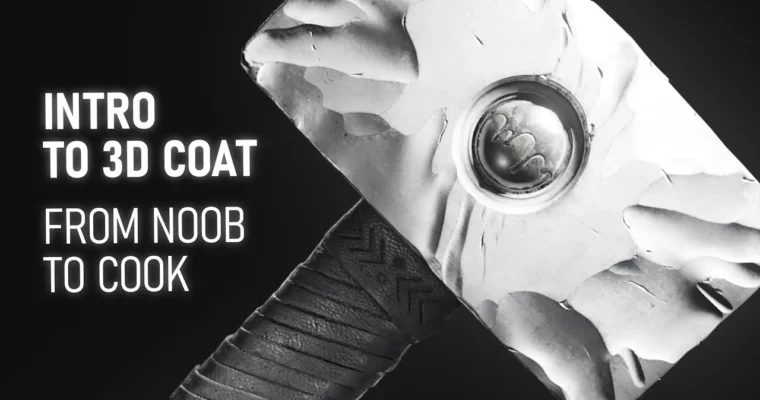
Intro to 3D Coat – From Noob to Cook by Anton Tenitsky
Intro to 3D Coat – From Noob to Cook by Anton Tenitsky

Author:Anton Tenitsky

Duration:8h 5m

Release date:2024, October

Publisher:Udemy

Skill level:Beginner

Language:English

Exercise files:Yes

Software:3D Coat, Blender, Photoshop, Inkscape

Course URL:https://www.udemy.com/course/intro-to-3d-coat-from-noob-to-cook

Go from zero to a finished hard-surface prop by sculpting, retopoing, texturing, and rendering in 3D Coat and Blender.

If you’ve never opened 3D Coat before, this is your shortcut. You’ll sculpt a hammer and case with voxel sculpting, clean it up with retopology and UVs, texture it, then take it into Blender for lighting and render. Short 1-3 minute tool videos, plus narrated timelapses for the long stuff.

๐ŸŽฏ What you’ll learn

  • Navigate the 3D Coat interface and customize hotkeys and workspace
  • Sculpt with voxels and surface mode using brushes, alphas, and stencils
  • Use Pose, Move, Split, Blob, and Live Booleans for hard-surface forms
  • Perform manual retopology for clean, game-ready topology
  • Mark seams, unwrap, and pack UV shells without stretching
  • Bake maps and fix common baking errors
  • Texture with PBR smart materials, layers, and hand-painted detail
  • Export to Blender and set up materials, HDRI lighting, and cameras
  • Use auto-retopo and auto-UV for fast props
  • Render stills and animate a turntable with depth of field

โœ… Requirements

  • Skills: No prior experience with 3D Coat required, basic understanding of 3D navigation helps
  • Tools: 3D Coat, Blender, Photoshop for composition preview, Inkscape for vector shapes
  • Hardware: 3-button mouse, 16GB RAM minimum, dedicated GPU recommended for baking and rendering

๐Ÿ“ Description

This isn’t theory. You watch a tool for 1-3 minutes, then you use it right away on a real prop. The course follows a hammer and case build from blockout to final render, so every voxel sculpting trick, boolean, and stencil has a job to do. Long sculpts are shown as narrated timelapses, so you see the decisions, not just clicks.

You’ll get both sides of 3D Coat: fast and messy voxels for concepting, then tight surface mode for detail, freezing, noise, and sculpt layers. That includes instancing for rivets, Live Booleans for the hammer head, Sketch tool for the stand, and Replicator for arrays. When stuff breaks – and it will – there’s a fix: reprojection, artifact cleanup, low-poly proxy for big deformations, backup volumes with Pose tool.

Then you make it usable. You’ll do manual retopology edge by edge, unwrap clean UV shells, and bake without wavy normals. After that it’s all about look: PBR smart materials, layer masks, hand-painted scratches, oily wood smudges, roughness variation. You finish in Blender with materials, studio lights, HDRI, camera animation, and DOF for a portfolio turntable.

๐Ÿง‘โ€๐ŸŽ“ Who this course is for

  • Total beginners who opened 3D Coat once and closed it in panic
  • 2D artists who want to try 3D sculpting without drowning in menus
  • Blender or ZBrush users who want retopo, UVs, and baking done in one app
  • Game and prop artists who need clean topology and solid PBR textures fast

๐Ÿง‘โ€๐Ÿซ About the Author

Anton Tenitsky has been teaching 3D Coat on YouTube for over 7 years, breaking down sculpting, retopology, and texturing into short practical videos. He works primarily with hard-surface props and stylized assets, focusing on a fast voxel-to-render workflow. His teaching style is straight tool-by-tool demos plus real-time problem solving, which is exactly how this course is built.

๐Ÿ Final Result

  • Finished hard-surface hammer with stand and storage case – sculpted, retopoed, UVed, and textured in 3D Coat, lit and rendered in Blender with studio lighting and turntable camera animation ready for portfolio.
Curriculum

๐Ÿ“‹ Course content

  1. Module 1:  Interface Basics
    • Glossary2:32
    • Installation2:21
    • Opening 3D Coat1:31
    • Camera Controls2:33
    • UI Customization Hotkeys And Hints2:20
    • Sculpt Tree Voxel Layers1:45
    • Layer Duplication Hierarchy2:45
    • Object Navigation2:23
    • Side Toolbar0:36
    • Smooth Shade Preview0:25
    • Real Time Shading1:26
    • Undo And Redo Actions0:35
    • Reference Planes to Bring Concept Art0:58
    • Layer Backup Renaming0:31
    • Saving1:05
    • Autosave0:47
    • Voxel Hide0:51
    • E-Menu2:31
    • Symmetry0:50
  2. Module 2:  Sculpting
    • Creating First Element Using Vox Hide1:27
    • Duplicating And Deleting Hidden Voxels0:55
    • Create New Object With Separate Hidden Volumes1:08
    • Pose Tool To Change Proportions3:15
    • Rotate Invisible Layers0:45
    • Transform Scale And Non-Uniform Mesh Issues1:15
    • Picking Layer by Click And Shift Selecting Multiple Layers0:42
    • Resampling Object Density And Smoothing1:48
    • Move Tool And Brush Radius Change0:59
    • Using Brush Alphas With Move Tool1:09
    • Smooth Brush Setting0:38
    • Split Tool Basics1:05
    • Split Tool Round Shape4:16
    • Lattice Box with Pose Tool For Large Deformation3:10
    • Combining Layers With Different Density2:14
    • Fill Tool For Section Blending2:17
    • Vox Layer For Leather Stripes3:37
    • Instancing Workflow4:04
    • Sphere Tool For Rivets4:04
    • Tweaking Instanced Layers With Pose And Move Tool1:02
    • Clay Brush6:41
    • De-Instance1:15
    • Applying Different Mats To Multiple Objects And Instances1:37
    • Constructing Our Own Simple Material And Dealing With Issues5:41
    • Bandage 3D Hack1:06
    • Creating An Additional Leather Piece Using Shown Previously Methods6:33
    • Symmetry Copy2:22
    • Timelapse – Using Basic Tools To Improve Design6:24
    • Using Back Up Volumes And Pose Tool To Fix Mesh2:56
    • Vox Hide On Brush For Non-Destructive Chipping3:29
    • Contour Selection Preview And Layer Reference Colours1:28
    • On-Plane Tool With Voxel Hide2:13
    • Complex Patterns With On-Plane1:37
    • Through All Volumes0:57
    • Flipping And Side-Effect Of Flipping On Instances0:53
    • Cut Off Versus Vox Hide0:24
    • Blob Tool4:35
    • Live Booleans6:25
    • Primitive Objects Workflow3:51
    • Type Letters Primitive Object3:21
    • Extracting Shell From Volume2:51
    • Custom Vector Shapes0:46
    • Using Free Inkscape To Create Vector Shapes4:39
    • Using Brush Smudging For Wood3:31
    • Stencils For Extra Wood Detailing8:52
    • Difference Between Custom Shapes And Stencils1:01
    • Re-Iteration On Boolean Collapse Tree With Advanced Tips1:18
    • Surface Layer Mode2:27
    • Masking – Freezing Mesh0:35
    • Noise Feature3:10
    • Pick N Paste For Custom Brushes2:48
    • Copy Clay0:42
    • Reprojection2:25
    • Sculpting Layers2:00
    • Pinch Brush Surface To Voxel0:55
    • Surface Mesh Artifact Fixing1:19
    • Creating Low-Poly Proxy For Big Deformation1:01
    • Using Sketch Tool For Crazy Complex Stand8:27
    • Extra Timelapse Stand A4:29
    • Extra Timelapse Stand B33:44
    • Timelapse Case1:17:35
    • Timelapse Hammer Head Boolean Design16:02
    • Timelapse Working On Stripes And Detailing5:29
    • Timelapse Hammerhead Different Methods Of Detailing7:18
    • Hammerhead 3D Coat Logo0:26
    • Replicator Tool For Arrays4:49
    • Pick And Act On Ghosted Volumes0:48
    • Import 3D Coat Objects To Your Scene1:13
    • Import-Export Obj To 3D Coat2:16
  3. Module 3:  Manual Retopology
    • Retopo Room Basics2:15
    • Points To Polygons Tool2:14
    • Quads Tool0:29
    • Add-Split Tool1:19
    • Brush Tweak Tool0:44
    • Knife Tool0:58
    • Strokes Tool For Cylinders1:05
    • R-Fill Tool0:31
    • Smart Retopo Options1:13
    • Cap Tool0:11
    • Selection Tools And Approaches2:52
    • Smart Extrude0:46
    • Apply Symmetry To Mesh Issues1:31
    • Useless Tweak Tools1:13
    • Slide Edge And Vertex0:27
    • Timelapse – Retopo Process19:31
  4. Module 4:  Creating UVs
    • Intro2:15
    • Deleting Shells In 3D Coat Way0:37
    • Creating Shells Using Mark Seams Tool3:47
    • Path Tool1:42
    • Unwrapping1:22
    • Combining And Scaling Shells2:59
  5. Module 5:  Baking and Texturing
    • Baking Texture2:12
    • Resolving Baking Issues4:24
    • Final Baking Tweaks And Issues0:58
    • Painting Room Basics0:39
    • Painting Tools5:00
    • Layer Panel2:44
    • Layer Colour Correction0:37
    • Smart Materials4:25
    • Customizing Smart Materials1:39
    • Scaling And Rotating Texture1:51
    • Timelapse – Texturing With Smart Materials9:18
    • Adding Mask1:09
    • Creating Story With Hand Texturing2:04
    • Timelapse – Masking1:23
    • Timelapse – Smudge Smooth Oily Handle1:24
    • Timelapse – Scratches2:51
    • Timelapse – Big Brush For Gradient1:26
    • Timelapse – Applying Contrast To Achieve Salt Effect1:51
    • Timelapse – Painting Roughness To Get Black Spots Out1:13
    • Export From 3D Coat0:44
  6. Module 6:  Blender Scene Set Up
    • Import To Blender And Material Set Up1:50
    • Basic Studio Lighting3:26
    • Improving Viewport Rendering Settings1:28
    • HDRI Environment Map1:25
    • Fixing Normal Map Issues With Triangulation0:36
    • Advanced Light Sculpting And Rendering5:17
    • Rendering With Transparent Background0:56
    • Composition Preview In Photoshop2:03
  7. Module 7:  Auto-Retopology and Texturing
    • Preparing Case For Decimation2:05
    • Auto-Retopo And Auto-UV4:00
    • Case Baking And Fixing Bake1:17
    • Pre-Baking Ambient Occlusion And RGB Curvature0:34
    • Timelapse – Case Texturing12:11
    • Case Export And Scene Set Up1:25
    • Improving Reflections In Shadows0:21
    • Quick Dirty Fix Of Case Artefact1:23
    • Moving Props1:07
    • Setting Pivot Point For Rotation1:03
    • Studio Light Set Up Explanation1:18
    • Animating Case Rotation0:53
    • Creating And Animating Camera3:33
    • Depth Of Field – DOF2:13
    • What Could Have Been Done Better1:59
Watch online or Download for Free
Intro to 3D Coat – From Noob to Cook by Anton Tenitsky
NAME
SIZEDURATION
02 – Sculpting
2.8 GB
05 E-Menu
19.1 MB

Download all Videos (154)
4.7 GB

Project Files (Assets, Resources)
54.4 KB

Download all

Join us on
  Channel    and      Group

Leave a Comment

Your email address will not be published. Required fields are marked *