

Ad Clicks : Ad Views : Ad Clicks : Ad Views : Ad Clicks : Ad Views : Ad Clicks : Ad Views :
Oh Snap!

It looks like you're using an adblocker. Adblockers make us sad. We use ads to keep our content happy and free. If you like what we are doing please consider supporting us by whitelisting our website. You can report badly-behaved ads by clicking/tapping the nearby 'Advertisement' X text.

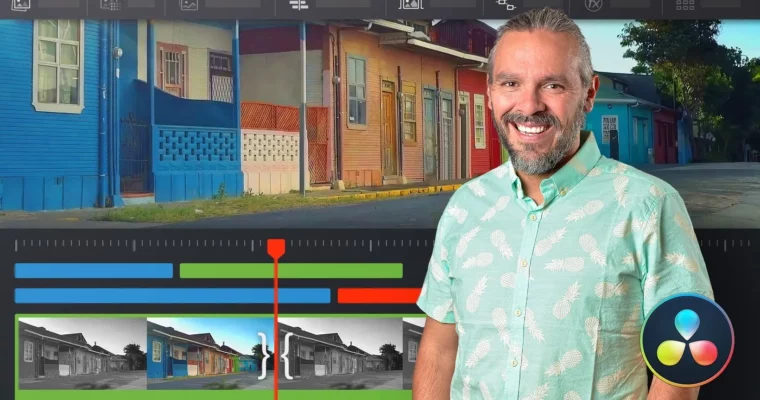
Introduction to DaVinci Resolve for Video Editing by Leo Fallas
Introduction to DaVinci Resolve for Video Editing by Leo Fallas

Author:Leo Fallas

Actual Duration:5h 55m

Release date:2020, September

Publisher:Domestika

Skill level:Beginner

Language:Spanish

Exercise files:Yes

Software:DaVinci Resolve 16

Course URL:https://www.domestika.org/en/courses/1265-introduction-to-davinci-resolve-for-video-editing

Learn to edit video from start to finish using DaVinci Resolve, the industry-standard tool for post-production, guided by a certified colorist and post-producer.

This Domestika Basics course, taught by certified colorist Leo Fallas, walks you through the entire video editing workflow in DaVinci Resolve. You’ll start by setting up your project and organizing your media, then move through the Cut and Edit pages to build your timeline. By the end, you’ll know how to handle multi-camera footage and export a high-quality master file.

🎯 What you’ll learn

  • Set up and manage DaVinci Resolve projects and databases.
  • Import, back up, and organize footage using the Media Pool and Smart Bins.
  • Edit quickly and efficiently on the Cut page.
  • Refine your edit with advanced tools on the Edit page.
  • Synchronize and edit multi-camera footage.
  • Export your final project with the correct codecs and settings.

✅ Requirements

  • Skills: Basic computer skills. No prior video editing experience needed.
  • Tools: DaVinci Resolve 16 (free version available from Blackmagic Design).
  • Hardware: A computer with Windows 8.1 (or later), macOS X 10.10.5 (or later), or Linux CentOS 6.6.

📝 Description

This isn’t just a tour of the interface. Leo Fallas teaches you the actual workflow professionals use. You’ll start by understanding how DaVinci Resolve handles its database—a crucial step for keeping your projects safe and organized. Then, you’ll learn the proper way to ingest and back up your footage using the Clone Tool, so you never lose a file.

The course is split into six focused modules. First, you’ll get comfortable on the Cut page, which is built for speed. You’ll learn to review takes with Source Tape and use the advanced trimming tools to get a rough cut done fast. Then, you move to the Edit page, where you’ll refine that cut, add effects, adjust speed, work with titles, and handle audio. Leo also covers multi-camera editing, showing you how to sync clips from different angles and switch between them on the fly.

Finally, you’ll learn the theory behind codecs and compression, and how to use the Delivery window to export your project for web, broadcast, or a high-quality master. The goal is to give you a repeatable, professional pipeline from start to finish.

🧑‍🎓 Who this course is for

  • Beginners who want to learn video editing from the ground up using a professional tool.
  • Editors transitioning from other software who want to understand DaVinci Resolve’s specific workflow.
  • Content creators looking for a structured, project-based approach to post-production.

🧑‍🏫 About the Author

Leo Fallas is a colorist and post-producer from Costa Rica. He started his career as an editor before specializing in cinematic post-production at the Centro de Capacitación Cinematográfica in Mexico. He later founded his own coloring studio, working on films, documentaries, advertising, and music videos for over twelve years. Today, he works as a freelance colorist in Mexico, creating content for Netflix and Amazon Prime Video, and regularly teaches coloring classes.

🏁 Final Result

  • A fully edited video project, from initial import to final export, using a professional DaVinci Resolve workflow.
  • A solid understanding of how to organize, edit, and deliver footage for any platform.
Curriculum

📋 Course content

  1. Course 1: Preparing an Editing Project
    • Welcome
    • Databases and projects
    • The preferences
    • Creating my ideal keyboard
    • Interface description
    • Practice
  2. Course 2: Importing and Managing Material with Media Pool
    • Welcome
    • Clone Tool
    • Prepare the project
    • Intake and timing
    • Order, colors and labels. Let’s use the Smart Bins
    • Practice
  3. Course 3: The Cut Page
    • Welcome
    • The Cut window interface
    • Review takes with Source Tape
    • Advanced Cut Window Tools
    • Tools for adding effects and polishing editing
    • Export from Cut window
    • Practice
  4. Course 4: The Edit Page
    • Welcome
    • Bring material to the timeline
    • Move within the timeline
    • Beyond simple trim
    • Effects
    • Transform
    • Speed
    • Titles and cache
    • Audio
    • Practice
  5. Course 5: Multi-Camera Editing
    • Welcome
    • Synchronize cameras in the Cut window
    • Edit multicam with Multicam Clip
    • Keyframes
    • Practice
  6. Course 6: Export the Edition and Finalize Your Project
    • Welcome
    • Brief explanation about codecs and formats
    • Understand the Delivery window
    • Recommendations to send to web
    • Recommendations for a high-quality master
    • I want to bring this edition to other software
    • Archive projects and manage media
    • Practice
    • Bonus
Watch online or Download for Free
Introduction to DaVinci Resolve for Video Editing by Leo Fallas
NAME
SIZEDURATION
Course 1- Preparing an Editing Project
48.1 MB45m
U1- Welcome
5.3 MB2m
0_Welcome
5.3 MB2m
U2- Databases and projects
10.4 MB9m
U3- The preferences
11.2 MB15m
U4- Creating my ideal keyboard
8.4 MB7m
U5- Interface description
8.2 MB8m
U6- Practice
4.5 MB3m
0_Practice
4.5 MB3m
Course 2- Importing and Managing Material with Media Pool
55.8 MB48m
U1- Welcome
3.3 MB1m
0_Welcome
3.3 MB1m
U2- Clone Tool
6.4 MB6m
U3- Prepare the project
10.4 MB11m
U4- Intake and timing
15.5 MB13m
U5- Order, colors and labels Let's use the Smart Bins
14.7 MB11m
U6- Practice
5.5 MB3m
0_Practice
5.5 MB3m
Course 3- The Cut Page
95.7 MB50m
U1- Welcome
4.3 MB1m
0_Welcome
4.3 MB1m
U2- The Cut window interface
13.2 MB7m
U3- Review takes with Source Tape
20.3 MB11m
U4- Advanced Cut Window Tools
19.3 MB9m
U5- Tools for adding effects and polishing editing
22.6 MB12m
U6- Export from Cut window
8.8 MB5m
U7- Practice
7.3 MB3m
0_Practice
7.3 MB3m
Course 4- The Edit Page
138.3 MB1h 39m
U1- Welcome
4.4 MB1m
0_Welcome
4.4 MB1m
U2- Bring material to the timeline
19.3 MB11m
U3- Move within the timeline
20.8 MB15m
U4- Beyond simple Trim
10.7 MB7m
U5- Effects
19.3 MB14m
0_Effects
19.3 MB14m
U6- Transform
11.1 MB7m
0_Transform
11.1 MB7m
U7- Speed
12.6 MB10m
0_Speed
12.6 MB10m
U8- Titles and cache
18.7 MB16m
U9- Audio
14 MB11m
0_Audio
14 MB11m
U10- Practice
7.3 MB4m
0_Practice
7.3 MB4m
Course 5- Multi-Camera Editing
65.5 MB35m
U1- Welcome
3.6 MB0m
0_Welcome
3.6 MB0m
U2- Synchronize cameras in the Cut vending
15.1 MB8m
U3- Edit multicam with Multicam Clip
21.4 MB9m
U4- Keyframes
19.3 MB13m
0_Keyframes
19.3 MB13m
U5- Practice
6.1 MB3m
0_Practice
6.1 MB3m
Course 6- Export the Edition and Finalize Your Project
87.6 MB1h 16m
U1- Welcome
4.5 MB1m
0_Welcome
4.5 MB1m
U2- Brief explanation about codecs and formats
11.3 MB11m
U3- Understand the Delivery window
7.6 MB6m
U4- Recommendations to send to web
15.2 MB13m
U5- Recommendations for a high-quality master
11.6 MB11m
U6- I want to bring this edition to other software
12.4 MB10m
U7- Archive projects and manage media
12.1 MB11m
U8- Practice
5.8 MB3m
0_Practice
5.8 MB3m
U9- Bonus
7.1 MB5m
0_Bonus
7.1 MB5m

Download all Videos (43)
490.5 MB5h 55m


Download all

Join us on
  Channel    and      Group

Leave a Comment

Your email address will not be published. Required fields are marked *