

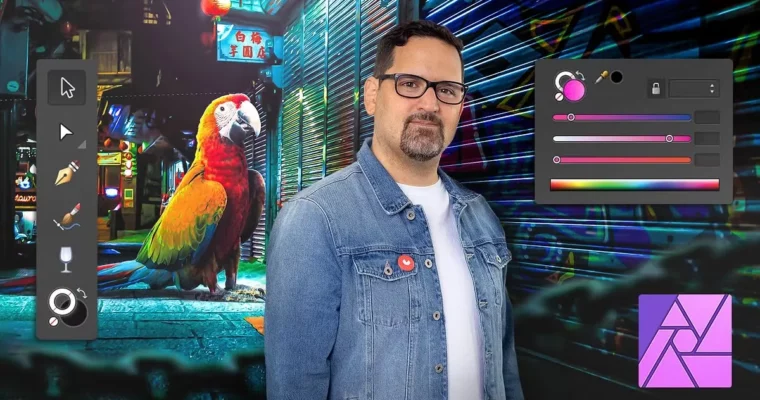
Introduction to Affinity Photo by Carlos Jimenez Varela

Actual Duration:5h 57m
Release date:2021, September
Publisher:Domestika
Skill level:Beginner
Language:English
Exercise files:Yes
Software:Affinity Photo
Course URL:https://www.domestika.org/en/courses/1301-introduction-to-affinity-photo
This Domestika Basics course is a straight-up, no-nonsense introduction to Affinity Photo. Carlos Jimenez Varela, a designer and publicist, walks you through the entire program—from interface basics to advanced non-destructive workflows. You’ll learn how to retouch photos, build photomontages, and develop a unique visual style, all without touching Photoshop. It’s perfect if you’re switching from Adobe or starting fresh with a powerful, affordable alternative.
🎯 What you’ll learn
- Navigate the Affinity Photo interface and customize your workspace
- Create simple photomontages using basic selection and masking tools
- Retouch portraits with brushes and colorization features
- Use adjustment layers for non-destructive editing workflows
- Export professional-grade compositions for print or web
✅ Requirements
- Skills: No prior experience with Affinity Photo needed; basic computer literacy is helpful.
- Tools: A graphics tablet is recommended but not required.
- Hardware: Computer with Windows 10 or later, or macOS X v10.14 or later.
📝 Description
Carlos doesn’t waste time. He kicks off by comparing Affinity Photo to Photoshop, so you know exactly what you’re getting into. Then it’s straight into the fundamentals—digital image basics, interface navigation, and setting up your workspace. No fluff, just practical stuff you’ll actually use.
The course ramps up quickly. You’ll start building simple photomontages using basic tools, then hit the magic of mask layers. That’s where the real power lies. Carlos breaks down how masks work in plain language, so you’re not just clicking buttons—you’re understanding the logic behind each step.
Next up: retouching. You’ll get hands-on with brushes and colorization tools to polish portraits and fix imperfections. Carlos shows you how to keep things natural, avoiding that over-processed look. It’s about enhancing, not erasing.
The final module is where everything clicks. You’ll dive into non-destructive workflows using adjustment layers. This is a game-changer. You can tweak, experiment, and revert without wrecking your original image. Carlos emphasizes control—so you’re always the one calling the shots, not the software.
By the end, you’ll have a solid grasp of the entire program. You’ll be able to create professional-looking compositions and photomontages with confidence. And since it’s a Domestika Basics course, you get structured, bite-sized lessons that build on each other. Perfect for self-paced learning.
🧑🎓 Who this course is for
- Photographers looking to expand their editing toolkit beyond Photoshop
- Graphic designers and digital artists wanting a cost-effective alternative for photomontage work
- Beginners with zero experience in photo editing who want a structured, project-based introduction
🧑🏫 About the Author
Carlos Jimenez Varela is a designer and publicist with years of hands-on experience in photo retouching and photomontage. He’s known for his surrealistic style, which he previously taught in his Domestika course on Photoshop. Carlos brings a practical, no-nonsense approach to teaching—he focuses on what works in real projects, not just theoretical concepts. His background in advertising means he understands how to create images that grab attention and communicate effectively.
🏁 Final Result
By the end of this course, you’ll have completed several hands-on photomontage projects, from simple compositions to fully retouched portraits. You’ll walk away with a portfolio-ready piece that showcases your ability to use Affinity Photo for professional-grade image manipulation and creative expression.
 Channel