

Ps Channels and Masks with Deke McLelan

Duration:07:37:00
Actual Duration:7h 37m
Release date:2018, September 25
Skill level:Intermediate
Language:English
Exercise files:Yes
Course URL:https://www.lynda.com/course-tutorials/Photoshop-Masking-Compositing-Fundamentals/197939-2.html
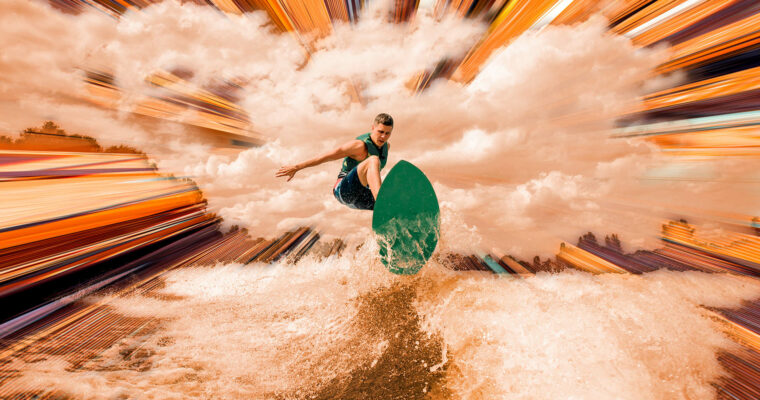
Learn how to leverage masks and channels to isolate areas of an image for making enhancements. Join Photoshop expert Deke McClelland as he takes you step by step through working with channels and masks in Adobe Photoshop. First, Deke explains how channels and masks work. Then he shows how to make selections and use the Color Range command and the Focus Area command. Next, he covers refining selections, extracting masks, blending, and mixing. Additionally, Deke demonstrates how to put all of the layers together into a final composite.
Topics include:
Working with the different channels
Creating the best masks
Enhancing selections text display
The Color Range command
Defining a selection
The Focus Area command
Applying global refinements
Refining selections and masks
Working with alpha channels
Extracting masks from channels
Working with blend modes
Working with the Refine Edge adjustment
Compositing
0 – Introduction
01 – Welcome to Channels and Masks
02 – Loading Dekes custom dekeKeys shortcuts
03 – Adjusting the RGB and CMYK color settings
04 – Setting up a pro-level workspace
05 – Thumbnails and transparency
1 – 1. How Channels Work
06 – It all starts with a channel
07 – Introducing the Channels panel
08 – How color channels work
09 – Viewing channels in color
10 – How RGB works
11 – Single-channel grayscale
12 – Drafting a mask with Black & White
13 – The other 3-channel mode- Lab
14 – The final color mode- CMYK
15 – How CMYK works
16 – Mask in RGB, copy to CMYK
2 – 2. How Masks Works
17 – The alpha channel is home to the mask
18 – The origin of the alpha channel
19 – How masks work
20 – Saving a selection as a layer mask
21 – Creating an alpha channel
22 – The Save Selection as Channel icon
23 – Loading a selection from a channel
24 – Loading a selection from a layer
25 – Loading a selection from a different image
26 – Sweetening the final composition
3 – 3. The Color Range Command
27 – The best selection tools are commands
28 – A brief Magic Wand refresher
29 – Introducing the Color Range command
30 – Working in the Color Range dialog box
31 – Localized color clusters
32 – Selecting complex organic details
33 – Using Color Range to augment a mask
34 – Finessing and feathering a layer mask
35 – Creating a zoom effect with Pinch
36 – Isolating Color Range inside a marquee
37 – Inverting everything with type
38 – Increasing the legibility of type
4 – 4. Select – Subject
39 – Just choose a command and let it run
40 – Introducing Select – Subject
41 – Select – Subject vs. Color Range
42 – Combining selections
43 – Softening edges with the Blur tool
44 – Smoothing edges with the Smudge tool
45 – Adding depth of field to a background
5 – 5. The Focus Area Command
46 – The Hail Mary of automated selections
47 – Edges vs. noise
48 – A brief Quick Selection refresher
49 – Expanding a selection with Select – Similar
50 – Introducing the Focus Area command
51 – Using the Focus Area brush
52 – Focus Area vs. Select – Subject
53 – Bringing in some better hair
54 – Viewing mask and image at the same time
55 – Non-destructive feather and density
56 – Masking a gradient layer
6 – 6. Refining Selections and Masks
57 – The joy of automated refinement
58 – Introducing Select and Mask
59 – Applying global refinements
60 – Edge Detection- Radius and Smart Radius
61 – Painting with the Refine Edge brush
62 – Decontaminating colors
63 – Selecting before you refine
64 – The legacy Refine Edge command
65 – Further refining with Refine Mask
66 – Matching the lighting of your scene
7 – 7. Extracting Masks from Channels
67 – Mastering channel operations
68 – Introducing the Calculations command
69 – Previewing channels with Calculations
70 – Blending two channels together
71 – Increasing the contrast of a channel
72 – Filling in regions with the Brush tool
73 – Using the Add and Subtract modes
74 – The Black and White Point eyedroppers
75 – Soft Light, Overlay, and Hard Mix
76 – Painting with the Overlay mode
77 – Combining alpha channels to make a mask
8 – 8. Compositing- Putting It All Together
78 – The power of compositing
79 – Smooth edges and color fringing
80 – Assigning a shortcut to Refine Edge
81 – Correcting wispy edges with Refine Mask
82 – Bolstering hair or fur with a blended layer
83 – Combining your refined layer masks
84 – Dressing up a bad background
85 – Masking a background image
86 – From alpha channel to filter mask
87 – Darkening a sky with Gradient Overlay
88 – Creating a synthetic snow effect
89 – Enhancing your snowflakes
90 – Adding a snowflake bokeh on the lens
9 – Conclusion
91 – Wrapping it all up
 Channel