

Ad Clicks : Ad Views : Ad Clicks : Ad Views : Ad Clicks : Ad Views : Ad Clicks : Ad Views :
Oh Snap!

It looks like you're using an adblocker. Adblockers make us sad. We use ads to keep our content happy and free. If you like what we are doing please consider supporting us by whitelisting our website. You can report badly-behaved ads by clicking/tapping the nearby 'Advertisement' X text.

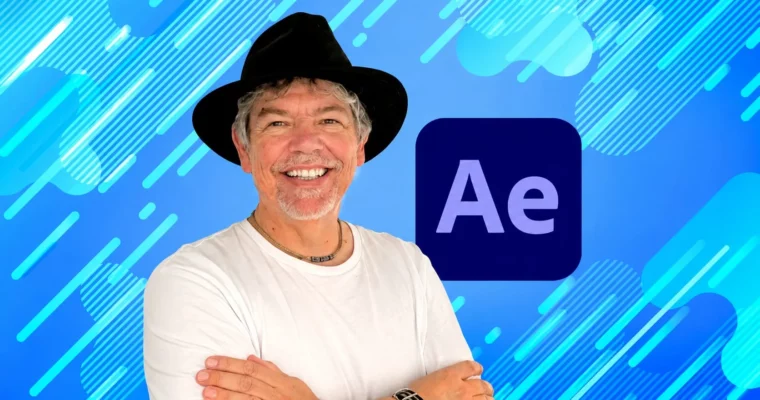
Non-Scary Adobe After Effects – Beginner to Wow by Tim Wilson
Non-Scary Adobe After Effects – Beginner to Wow by Tim Wilson

Author:Tim Wilson

Duration:9 hours

Actual Duration:8h 57m

Release date:2026, April

Publisher:Udemy

Skill level:Beginner

Language:English

Exercise files:Yes

Software:Adobe After Effects

Course URL:https://www.udemy.com/course/non-scary-adobe-afx-beginner-to-wow

Learn Adobe After Effects from scratch with easy step-by-step instructions and projects that you can repurpose.

A friendly, hands-on course that takes you from zero experience to creating professional-looking motion graphics and visual effects in Adobe After Effects. You’ll build real projects you can actually use.

🎯 What you’ll learn

  • Create a video project using fundamental and advanced After Effects techniques.
  • Make your videos stand out with professional-looking text and animations.
  • Add sound and use it to drive object movement.
  • Work with preset text effects for amazing-looking type.
  • Use green screen images to create multi-video compositions.
  • Export high-quality videos for multiple applications.

✅ Requirements

  • Skills: No experience of After Effects needed.
  • Tools: A copy of Adobe After Effects.
  • Hardware: A laptop or computer capable of running After Effects.

📝 Description

This course is built around a simple idea: learning After Effects shouldn’t be scary. Tim Wilson strips away the jargon and gets you animating from the very first lesson. You won’t just watch tutorials; you’ll build real projects like social media ads, video infographics, and music video clips.

The teaching method is project-based. Each new technique—like keyframing, masking, or motion tracking—is immediately applied to a practical example. You’ll learn how to use green screen footage, animate text along a path, and even drive animations with audio amplitude. By the end, you’ll have a portfolio of work you can repurpose for your own videos, whether for YouTube, marketing, or social media.

The course covers the 2024 version of After Effects, but the core techniques work on older and newer versions too. It’s a no-fluff, straight-to-the-point guide that focuses on what actually works in a real production pipeline.

🧑‍🎓 Who this course is for

  • Anyone who wants to learn Adobe After Effects to create or improve their videos.
  • YouTubers and Vloggers looking to level up their content.
  • Video editors, producers, and videographers.
  • Graphic Designers and Motion Graphic Artists.
  • Social media content creators.

🧑‍🏫 About the Author

Tim Wilson is a seasoned instructor on Udemy with a knack for making complex software feel approachable. He focuses on practical, project-based learning, ensuring students build real-world skills they can use immediately. His courses are known for their clear, step-by-step instructions and friendly tone.

🏁 Final Result

  • A collection of finished, portfolio-ready projects including a social media post, a video infographic, a product advert, an animated billboard, and a music video clip.
Curriculum

📋 Course content

  1. Module 1: Getting Started
    • Interface and Starting a Simple Composition Intro0:42
    • The Interface4:04
    • Import Video & Create Composition6:28
    • Zoom & Snap1:16
    • Add a Logo & Rename Layers4:13
    • Start to Animate6:34
    • Fade Clip & Shortcuts3:16
    • Save & Collect2:55
    • Render to Media Encoder3:23
  2. Module 2: Social Media Post Project
    • Social Media Post Project Intro0:30
    • Make Comp & Add Media5:43
    • Add Text6:39
    • Fade Text & Add Logo6:16
    • Animate Logo & Change Background Color4:08
    • Stroke Text & Render4:21
  3. Module 3: Movement & Simple Masks
    • Movement & Simple Masks Intro0:31
    • Move Position3:55
    • Interpolation to Round Path1:55
    • Easy Ease7:14
    • Anchor Point & Easy Ease Spin4:34
    • Motion Blur1:51
    • Constant Vector Rasterization4:43
    • Modes Lighten4:40
    • Simple Vector Mask6:52
  4. Module 4: Create a Video Infographic Project
    • Create a Video Infographic Project Intro0:26
    • Set Up Guides5:49
    • Add the Clips & Masks4:28
    • Add Color Overlays2:54
    • Add the Text Bars4:06
    • Animate Bars6:04
    • Add Drop Shadows4:35
    • Change Properties on Keyframes3:00
    • Add the Text2:25
    • Fade in the Text3:31
    • Animate in the Logo2:45
    • Fade In & Out with Solid Layer3:04
    • Render for Social Media1:59
  5. Module 5: Effects, Green Screen & Adjustment Layers
    • Effects, Green Screen & Adjustment Layers Intro0:49
    • Sequence Clips Easily9:03
    • Blur & Keyframe5:08
    • Adjust Brightness2:30
    • Adjustment Layers3:39
    • Animate the Adjustment layer2:14
    • Render to Portrait3:05
  6. Module 6: Create a Video Advert – Fairtrade Coffee Project
    • Create a Video Advert – Fairtrade Coffee Project Intro0:36
    • Add Clips & Green Screen4:19
    • Green Screen & Animate8:37
    • Color Correct Skin Tone3:25
    • New Composition & Render8:46
  7. Module 7: Exploring Text
    • Exploring Text Intro0:24
    • Basic Typography5:34
    • Text Flow in a Frame1:18
    • Paragraph Options1:17
    • Animate Tracking5:21
    • Animate Line Spacing4:16
    • Work With Range2:48
    • Presets to Animate Text6:00
    • Use Multiple Presets1:47
    • Organic Animation Presets1:38
    • What the Preset is Doing4:12
    • Adjust Keyframes Proportionally7:18
  8. Module 8: Headphone Ad for Social Media Project
    • Headphone Ad for Social Media Project Intro0:30
    • Get Assets2:59
    • Green Screen & Add Music4:07
    • Add Text & Change Tracking5:05
    • Add a Preset to the Text2:47
    • Animate Headphones5:53
    • Clean Up Keyframes1:50
    • Add the Model Number Text5:43
    • Center Spiral Preset2:54
    • Collect Files4:33
    • Render1:16
  9. Module 9: Pre-compose – Learn with a Project
    • Pre-compose – Learn with a Project Intro0:33
    • Add Clips & Keylight3:02
    • Colorize4:54
    • Pre-compose Your Layers6:44
    • Time Reverse5:11
    • Render2:15
    • Issues1:15
  10. Module 10: Masking & Paths
    • Masking & Paths Intro0:28
    • Animate Mask3:43
    • Mask GreenScreen2:36
    • Make a Track Matte5:31
    • Video as Track Matte2:21
  11. Module 11: Animated Billboard Advert Project
    • Animated Billboard Advert Project Intro0:33
    • Create Comp & Scale Buildings2:27
    • Animate Buildings4:48
    • Precompose & Add Paper Plane3:14
    • Animate Plane & Transform Path6:38
    • Change the Anchor Point2:11
    • Mask to Billboards3:15
    • Mask Paper Plane with Track Matte4:27
    • Text Along the Path5:32
    • Animate Text Along the Path3:41
    • Mask & Animate More Text5:10
    • Render the Project2:20
  12. Module 12: Parenting
    • Parenting Intro0:29
    • Bounce Circle Ready to Parent4:20
    • Parent Text to Circle4:25
    • Adjust parent & Child Separately4:36
  13. Module 13: Project: Kids TikTok Advert – Four Space
    • Project: Kids TikTok Advert – Four Space Intro0:48
    • Add & Rotate the Earth5:17
    • Animate Rocket Around Saturn7:15
    • Animate Astronaut3:35
    • Parent Rocket Earth & Astronaut3:18
    • Animate Star & Astronaut3:42
    • Animate UFO & Alien6:32
    • Render with Text6:03
  14. Module 14: Motion Tracking
    • Motion Tracking Intro0:29
    • Null Objects2:37
    • Track Video4:48
    • Parent to Null1:30
    • Smooth Out Keyframes4:34
  15. Module 15: Circle Trail Car – Go Green Project
    • Circle Trail Car – Go Green Project Intro0:27
    • Track Car & Add Circle7:05
    • Pulse Circle2:25
    • Create Lines & Parent Them4:16
    • Edit the Lines1:32
    • Add Text1:48
    • Parent Text to Lines2:20
    • Pre-Compose & Intro3:40
    • Outro Text4:01
  16. Module 16: Working with Time / Easing
    • Working with Time / Easing Intro0:26
    • Slowmo & Speed Up7:16
    • Reverse Time4:17
    • Freeze Frame1:19
    • Time Remapping4:47
    • Graph Editor Introduction4:30
    • Change Speed1:36
    • Use other Values2:26
  17. ** 17: Expression with Simple Maths – Cogs & Balls**
    • Expression with Simple Maths – Cogs & Balls Intro0:46
    • Animate with an Expression7:10
    • Make it Faster2:15
    • Reverse & Animation5:04
    • Use Different Properties3:40
  18. Module 18: Social Portrait Music Video Cassette Project
    • Social Portrait Music Video Cassette Project Intro0:45
    • Make a Comp & Add Photo2:24
    • Animate with Corner Pin3:59
    • Boing & Masking4:43
    • Bring in Logo & Change Opacity1:59
    • Create Text & Change Color2:51
    • Add a Text Preset3:01
    • Copy & Change Text1:23
    • Change Scale on Logo3:29
    • Adjust Music Volume2:55
    • Audio Amplitude & Bulge3:54
    • Use Bulge With Expression3:51
    • Use Scale with Audio Amplitude2:51
    • Create Video Out6:10
    • Save & Render1:58
    • Thank You0:35
Watch online or Download for Free
Non-Scary Adobe After Effects – Beginner to Wow by Tim Wilson
NAME
SIZEDURATION
9. Pre-compose – Learn with a Project
23.6 MB23m
14. Motion Tracking
14.2 MB13m
19. Thank You & Well Done
2.4 MB0m

Download all Videos (151)
466.4 MB8h 57m

Project Files (Assets, Resources)
116.4 KB

Download all

Join us on
  Channel    and      Group

Leave a Comment

Your email address will not be published. Required fields are marked *